Brother lbx label viewer 1.0.0.0
Description
# LBXViewerWLX — User Guide## Short description
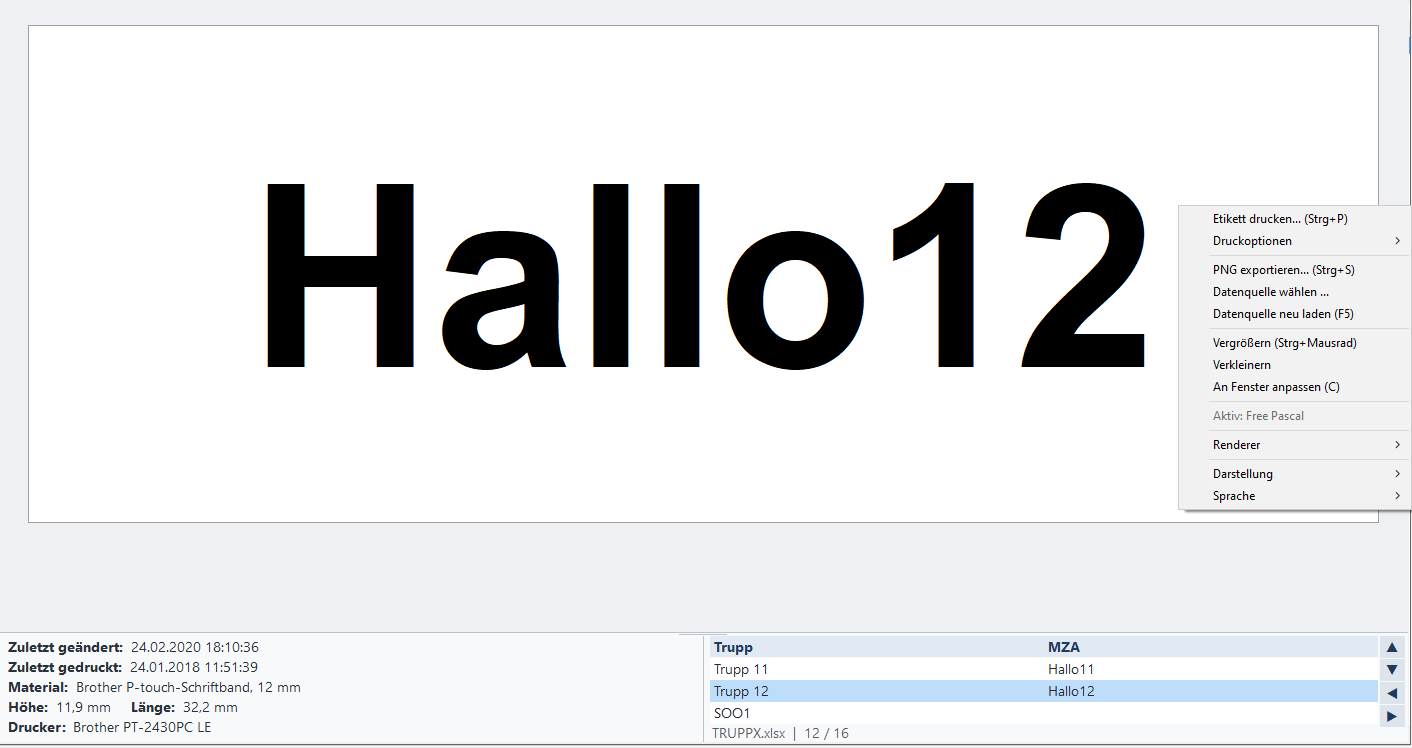
LBXViewerWLX is a Total Commander Lister (WLX) plugin for previewing **Brother P-touch `.lbx` label files** on Windows. Open a label with **F3** to see its layout, text, barcodes, images, and available label information without launching P-touch Editor.
The built-in renderer does not require the Brother b-PAC SDK. Some Brother-specific fonts, cliparts, or advanced objects may look different from P-touch Editor or appear as placeholders.
## Features
- Preview `.lbx` labels and generate Total Commander thumbnails.
- Display text, common barcodes, QR codes, images, basic shapes and frames.
- View label size, printer, media, timestamps, and optional linked-data records.
- Navigate CSV/TSV and supported Excel mail-merge data when a data source is available.
- Zoom, pan, and fit the label to the window.
- Export a label as a PNG image and print with a confirmation step.
- Choose the native renderer or prefer Brother b-PAC when it is installed and compatible.
- English, German, Russian and Ukrainian interface translations.
## Options
**Right-click the preview** to open the options menu:
| Setting | Choices / purpose |
|---|---|
| **Renderer** | **Automatic** (default), **Native (FPC)** or **SDK (prefer Brother b-PAC)**. Native is always available; b-PAC is optional. |
| **Appearance** | **Automatic** (follows Windows), **Light** or **Dark**. |
| **Language** | **Automatic**, **English**, **German**, **Russian** or **Ukrainian**. Missing translations fall back to English. |
| **Choose data source** | Select a local CSV, TSV, TXT, XLSX or XLSM file for labels with merge fields. The original `.lbx` is not modified. |
| **Reload data source** | Refresh the linked data after it changes. |
| **Export PNG** | Save the currently displayed label as a PNG image. |
| **Print label / Print via Windows GDI** | Open the printing flow. Check the printer and media before confirming. |
Your choices are stored in `lbxview.ini` beside the plugin. You may also edit its `[Renderer]`, `[Appearance]`, and `[Localization]` sections while Total Commander is closed.
## How to use
1. Install the compiled `lbxview.wlx64` (64-bit Total Commander) or `lbxview.wlx` (32-bit) through **Configuration → Options → Plugins → Lister plugins (WLX)**. Keep the supplied helper EXEs, `lbxview.ini`, and `language` folder alongside the plugin.
2. Select an `.lbx` file in Total Commander and press **F3**. To enable thumbnails, configure Total Commander to use Lister plugins for `.lbx` files.
3. Navigate the preview using these controls:
| Action | Control |
|---|---|
| Fit label to window | **C** or **Ctrl+Home** |
| Zoom in or out | **Ctrl+mouse wheel**, **+** or **-** |
| Pan | Drag with the mouse, use the arrow keys, or scroll the wheel |
| Export PNG | **Ctrl+S** |
| Print | **Ctrl+P** |
| Reload linked data | **F5** |
| Select linked-data records | **Up/Down**, **Page Up/Down**, **Home/End** when records are available |
| Adjust information panel | Drag the separator above the bottom metadata panel |
4. Right-click for renderer, appearance, language, data source, export, and printing options.
5. If a linked data file or Brother clipart resource is missing, the viewer indicates the issue; the label document is not changed.
**Note:** Brother b-PAC and proprietary P-touch resources are optional external components. Printing and some advanced graphics depend on the installed drivers and Brother resources. Always compare critical labels in P-touch Editor before printing.